Build a dinosaur runner game with Deno, pt. 3
Adding obstacles, collision detection and game mechanics to our example browser based game.
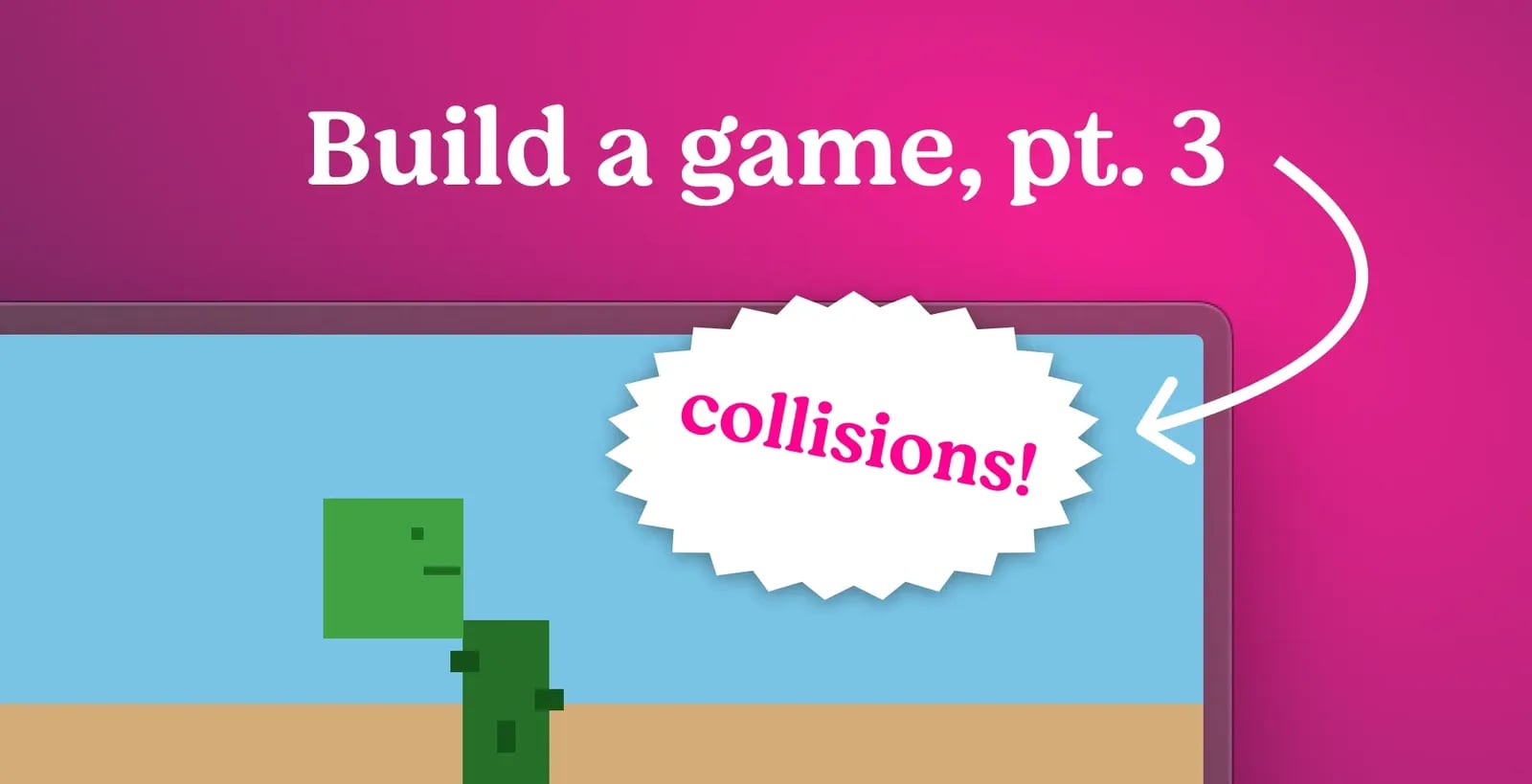

This series of blog posts will guide you through building a simple browser-based dinosaur runner game using Deno.
- Setup a basic project
- Game loop, canvas, and controls
- Obstacles and collision detection
- Databases and global leaderboards
- Player profiles, customization, and live tuning
- Observability, metrics, and alerting
Obstacles and collision detection
In Stage 2, we set up the basic game loop and rendering for our dinosaur runner game, but it still isn’t really a game, there’s nothing to ‘play’. In Stage 3, we will introduce obstacles for the dino to jump over, as well as implement collision detection to determine if the dino hits an obstacle, and ends the game.
What you’ll Learn
By the end of this stage, you will have learned:
- How to create and manage obstacles in the game
- Implementing collision detection between the dino and obstacles
- Updating game state based on collisions
Setting up the game state
We’re going to add some new properties to our game state to manage obstacles and scoring. Open up your
game.js
file and locate the constructor of your
DinoGame
class. In here we’ll add properties to the game state to set the initial game speed, the frame count that we’ll need to animate the dino and a high score tracker:
this.initialGameSpeed = 3;
this.frameCount = 0;
this.highScore = this.loadHighScore();
Scaffolding out the game methods
Our game currently has a
startGame()
and a
resetGame()
method. We’ll be adding several new methods to handle obstacle spawning, updating, collision detection, and scoring.
For now lets add empty method stubs to the class so we can fill them in later. Add these just below your existing methods:
gameOver() {}

loadHighScore() {}

saveHighScore() {}

updateHighScore() {}

drawGameOver() {}
The obstacle system
In game design terms, obstacles are typically represented as objects with properties such as position, size, and type. They have a bounding box that can be used for collision detection.
We’ll implement a simple obstacle system where obstacles are spawned at random intervals and move towards the dino. The player must jump over these obstacles to avoid collisions. As they successfully avoid obstacles, their score increases, and the game speed ramps up to increase difficulty.
In our
game.js
, lets add some more properties to the constructor to manage obstacles (these can go just before the
this.init();
call):
// Obstacle properties
this.obstacles = [];
this.obstacleSpawnTimer = 0;
this.obstacleSpawnRate = 120;
this.minObstacleSpawnRate = 60;
This creates an empty array to hold active obstacles, a timer to track when to spawn the next obstacle, and a spawn rate that determines how often obstacles appear. The
minObstacleSpawnRate
will ensure that obstacles don’t spawn too frequently as the game speeds up.
in the
startGame()
method, set the obstacle timer to zero so it starts fresh each round:
this.obstacleSpawnTimer = 0;
Spawning and updating obstacles
Obstacles are just rectangles that enter from the right edge and move left at the current game speed. Add these methods to the class, they can go below the
jump()
method:
spawnObstacle() {
    const obstacleTypes = [
        { width: 20, height: 40, type: "cactus-small" },
        { width: 25, height: 50, type: "cactus-medium" },
        { width: 30, height: 35, type: "cactus-wide" },
    ];

    const obstacle =
        obstacleTypes[Math.floor(Math.random() * obstacleTypes.length)];

    this.obstacles.push({
        x: this.canvas.width,
        y: this.groundY - obstacle.height,
        width: obstacle.width,
        height: obstacle.height,
        type: obstacle.type,
    });
}

updateObstacles() {
    if (this.gameState !== "playing") return;

    this.obstacleSpawnTimer++;
    if (this.obstacleSpawnTimer >= this.obstacleSpawnRate) {
        this.spawnObstacle();
        this.obstacleSpawnTimer = 0;
    }

    for (let i = this.obstacles.length - 1; i >= 0; i--) {
        this.obstacles[i].x -= this.gameSpeed;

        if (this.obstacles[i].x + this.obstacles[i].width < 0) {
            this.obstacles.splice(i, 1);
            this.score += 10;
        }
    }
}
Here, we set up some obstacle types with different sizes. The
spawnObstacle()
method randomly selects one and adds it to the obstacles array at the right edge of the canvas.
The
updateObstacles()
method increments the spawn timer and spawns a new obstacle when the timer exceeds the spawn rate. It also moves each obstacle left by the current game speed and removes any that have moved off-screen, awarding points for each successfully avoided obstacle.
Collision detection and difficulty ramping
Collision detection is how games determine if two objects have come into contact. We can check the bounding boxes of the dino and each obstacle to see if they overlap. If they do, the game ends.
Collision detection just compares the dino’s rectangle with each obstacle’s rectangle. If they overlap, the run ends. Immediately after adding
updateObstacles
, drop in these helpers:
checkCollisions() {
    if (this.gameState !== "playing") return;

    for (let obstacle of this.obstacles) {
        const isOverlapping =
            this.dino.x < obstacle.x + obstacle.width &&
            this.dino.x + this.dino.width > obstacle.x &&
            this.dino.y < obstacle.y + obstacle.height &&
            this.dino.y + this.dino.height > obstacle.y;

        if (isOverlapping) {
            this.gameOver();
            return;
        }
    }
}

updateGameDifficulty() {
    if (this.gameState !== "playing") return;

    const difficultyLevel = Math.floor(this.score / 200);
    this.gameSpeed = this.initialGameSpeed + difficultyLevel * 0.5;
    this.obstacleSpawnRate = Math.max(
        this.minObstacleSpawnRate,
        120 - difficultyLevel * 10,
    );
}
The
difficultyLevel
calculation increments every ~200 points, increasing both speed and spawn frequency so the game keeps getting harder the longer the player survives.
Drawing obstacles
To make the cacti feel less repetitive, each obstacle type gets a slightly different silhouette. Add this method to the class, it can go just below the
drawDino()
method:
drawObstacles() {
    this.ctx.fillStyle = "olive";

    for (let obstacle of this.obstacles) {
        this.ctx.fillRect(
            obstacle.x,
            obstacle.y,
            obstacle.width,
            obstacle.height,
        );

        this.ctx.fillStyle = "darkolivegreen";
        if (obstacle.type === "cactus-small") {
            this.ctx.fillRect(obstacle.x - 3, obstacle.y + 10, 6, 4);
            this.ctx.fillRect(obstacle.x + obstacle.width - 3, obstacle.y + 20, 6, 4);
        } else if (obstacle.type === "cactus-medium") {
            this.ctx.fillRect(obstacle.x - 4, obstacle.y + 8, 8, 6);
            this.ctx.fillRect(obstacle.x + obstacle.width - 4, obstacle.y + 15, 8, 6);
            this.ctx.fillRect(obstacle.x + obstacle.width / 2 - 2, obstacle.y + 25, 4, 8);
        } else if (obstacle.type === "cactus-wide") {
            this.ctx.fillRect(obstacle.x - 5, obstacle.y + 5, 10, 8);
            this.ctx.fillRect(obstacle.x + obstacle.width - 5, obstacle.y + 10, 10, 8);
            this.ctx.fillRect(obstacle.x + obstacle.width / 2 - 3, obstacle.y + 20, 6, 6);
        }

        this.ctx.fillStyle = "olive";
    }
}
Animating the dino
The dino has two little legs that we can move up and down as it runs to make a very simple running animation. Update the
drawDino()
method to the following:
drawDino() {
    const legOffset = this.gameState === "playing" && !this.dino.isJumping
        ? (Math.floor(this.frameCount / 10) % 2) * 2
        : 0;

    this.ctx.fillStyle = "green";
    this.ctx.fillRect(
        this.dino.x,
        this.dino.y,
        this.dino.width,
        this.dino.height,
    );

    this.ctx.fillStyle = "darkgreen";
    this.ctx.fillRect(this.dino.x + 25, this.dino.y + 8, 4, 4);
    this.ctx.fillRect(this.dino.x + 30, this.dino.y + 20, 8, 2);

    if (!this.dino.isJumping) {
        this.ctx.fillStyle = "green";
        this.ctx.fillRect(
            this.dino.x + 10,
            this.dino.y + 40 + legOffset,
            6,
            8 - legOffset,
        );
        this.ctx.fillRect(
            this.dino.x + 24,
            this.dino.y + 40 - legOffset,
            6,
            8 + legOffset,
        );
    }
}
Rendering the game components
We now need to update the
render()
method to draw the obstacles and the dino, and to overlay the instruction and game-over screens when appropriate:
Update the
render()
method so it clears the canvas, calls
drawObstacles()
, then
drawDino()
, and overlays the instruction and game-over screens when appropriate:
  render() {
    // Clear canvas
    this.ctx.clearRect(0, 0, this.canvas.width, this.canvas.height);

    // Draw obstacles
    this.drawObstacles();

    // Draw dino
    this.drawDino();

    // Draw instructions if waiting
    if (this.gameState === "waiting") {
      this.drawInstructions();
    }

    // Draw game over screen
    if (this.gameState === "gameOver") {
      this.drawGameOver();
    }
  }
Hooking it up to physics, game start and reset
We now need to update the
startGame()
and
resetGame()
methods to ensure the obstacle system is properly initialized and cleared when starting or resetting the game.
Update the
startGame()
method to reset the obstacles array when the game starts, and set the game speed and frame count to their initial values:
startGame() {
  this.gameState = "playing";
  this.score = 0;
  this.gameSpeed = this.initialGameSpeed;
  this.obstacles = [];
  this.obstacleSpawnTimer = 0;
  this.frameCount = 0;
  this.updateScore();
  this.updateStatus("");
}
Then update the
resetGame()
method to clear out any leftover obstacles so restarting feels instant:
resetGame() {
  this.gameState = "waiting";
  this.score = 0;
  this.gameSpeed = this.initialGameSpeed;
  this.obstacles = [];
  this.obstacleSpawnTimer = 0;
  this.frameCount = 0;
  this.dino.y = this.dino.groundY;
  this.dino.velocityY = 0;
  this.dino.isJumping = false;
  this.updateScore();
  this.updateStatus("Click to Start!");
  console.log("Game reset!");
}
And finally, add the obstacle updates and collision checks to the
updatePhysics()
method:
updatePhysics() {
    if (this.gameState !== "playing") return;

    this.frameCount++;

    // Apply gravity
    this.dino.velocityY += this.gravity;
    this.dino.y += this.dino.velocityY;

    // Ground collision
    if (this.dino.y >= this.dino.groundY) {
      this.dino.y = this.dino.groundY;
      this.dino.velocityY = 0;
      this.dino.isJumping = false;
    }

    // Update score (continuous scoring)
    this.score += 0.1;
    this.updateScore();

    // Update obstacles
    this.updateObstacles();

    // Check collisions
    this.checkCollisions();

    // Update difficulty
    this.updateGameDifficulty();
  }
Game over
So far we have the dino jumping and obstacles moving, but nothing happens when they collide. Let’s fix that!
When a collision is detected, we need to end the game and display the game over screen. Update the
gameOver()
method stub, to set the game state to “gameOver”, save the high score, and log a message:
gameOver() {
   this.gameState = "gameOver";
   this.saveHighScore();
   this.updateHighScore();
   this.updateStatus("Game Over! Click to restart");
   console.log(`Game Over! Final Score: ${Math.floor(this.score)}`);
 }
Next we’ll update the
drawGameOver()
method to overlay a simple game over message on the canvas:
drawGameOver() {
    // Semi-transparent overlay
    this.ctx.fillStyle = "rgba(0, 0, 0, 0.8)";
    this.ctx.fillRect(0, 0, this.canvas.width, this.canvas.height);

    // Game Over text
    this.ctx.fillStyle = "white";
    this.ctx.font = "36px Arial";
    this.ctx.textAlign = "center";
    this.ctx.fillText(
      "GAME OVER",
      this.canvas.width / 2,
      this.canvas.height / 2 - 40,
    );

    // Final score
    this.ctx.font = "20px Arial";
    this.ctx.fillText(
      `Final Score: ${Math.floor(this.score)}`,
      this.canvas.width / 2,
      this.canvas.height / 2 - 5,
    );

    // High score
    if (Math.floor(this.score) === this.highScore && this.highScore > 0) {
      this.ctx.fillStyle = "gold";
      this.ctx.fillText(
        "🏆 NEW HIGH SCORE! 🏆",
        this.canvas.width / 2,
        this.canvas.height / 2 + 25,
      );
    } else if (this.highScore > 0) {
      this.ctx.fillStyle = "#CCCCCC";
      this.ctx.fillText(
        `High Score: ${this.highScore}`,
        this.canvas.width / 2,
        this.canvas.height / 2 + 25,
      );
    }

    // Restart instruction
    this.ctx.fillStyle = "#FFFFFF";
    this.ctx.font = "16px Arial";
    this.ctx.fillText(
      "Click or press SPACE to restart",
      this.canvas.width / 2,
      this.canvas.height / 2 + 55,
    );
  }
High scores
We want players to feel rewarded for their best runs, so let’s implement a simple high score system using
localStorage
to store scores. We’ll create some methods to load, save, and update the high score, as well as modify the game over and reset logic to incorporate high score tracking. Update the stubbed methods to your
DinoGame
class:
loadHighScore() {
    return parseInt(localStorage.getItem("dinoHighScore")) || 0;
}

saveHighScore() {
    if (Math.floor(this.score) > this.highScore) {
        this.highScore = Math.floor(this.score);
        localStorage.setItem("dinoHighScore", this.highScore);
        console.log(`New High Score: ${this.highScore}!`);
    }
}

updateHighScore() {
    if (this.highScoreElement) {
        this.highScoreElement.textContent = this.highScore;
    }
}
Now we need to update the
init()
method to call the
updateHighScore()
method to and update the high score display when the game starts, add the following line to the
init()
method:
this.updateHighScore();
Finalizing Stage 3
Outside the class we keep the same health check from Stage 2 so you can verify the API route is alive when the page loads:
async function checkHealth() {
  try {
    const response = await fetch("/api/health");
    const data = await response.json();
    console.log("Server health check:", data);
  } catch (error) {
    console.error("Health check failed:", error);
  }
}

window.addEventListener("load", () => {
  checkHealth();
  new DinoGame();
  console.log(
    "Stage 3 complete: Full game with obstacles and collision detection!",
  );
});
When you run your game, you should see this!
Deploy your updated game
Now that we have a basic game loop, jumping dino, and score tracking, it’s time to deploy our updated game to the web! In your terminal you can run the following command to update the project you previously deployed in Stage 2:
deno deploy
Once deployed, you’ll have a fully functional dinosaur runner game where the dino can jump over obstacles, and the game ends upon collision. You’ll also have a URL that you can share to let others play your game!
Stage 4 is coming up soon, where we’ll connect the game to a backend so you can save scores server-side and open the door to multiplayer leaderboards. It’s going to get competitive!
What else are you building with Deno? Let us know on Twitter, Bluesky, or Discord.
Originally published on
Deno Blog
Keep reading


 Cloudflare Blog
 Vercel Blog
 Vercel Blog