Getting Started with Air in JetBrains IDEs – Part 1
Setting coding agents up to handle several tasks while you continue working is easy. The harder part is knowing where each task stands, what each agent has changed, and what still needs your attention. Recently, we introduced Air in JetBrains IDEs. It brings coding agents into the environment where you already write,…
Setting coding agents up to handle several tasks while you continue working is easy. The harder part is knowing where each task stands, what each agent has changed, and what still needs your attention.
Recently, we introduced Air in JetBrains IDEs. It brings coding agents into the environment where you already write, review, run, and test your code. From one workspace, you can manage different agent sessions, track their progress, and review their changes with familiar JetBrains tools.
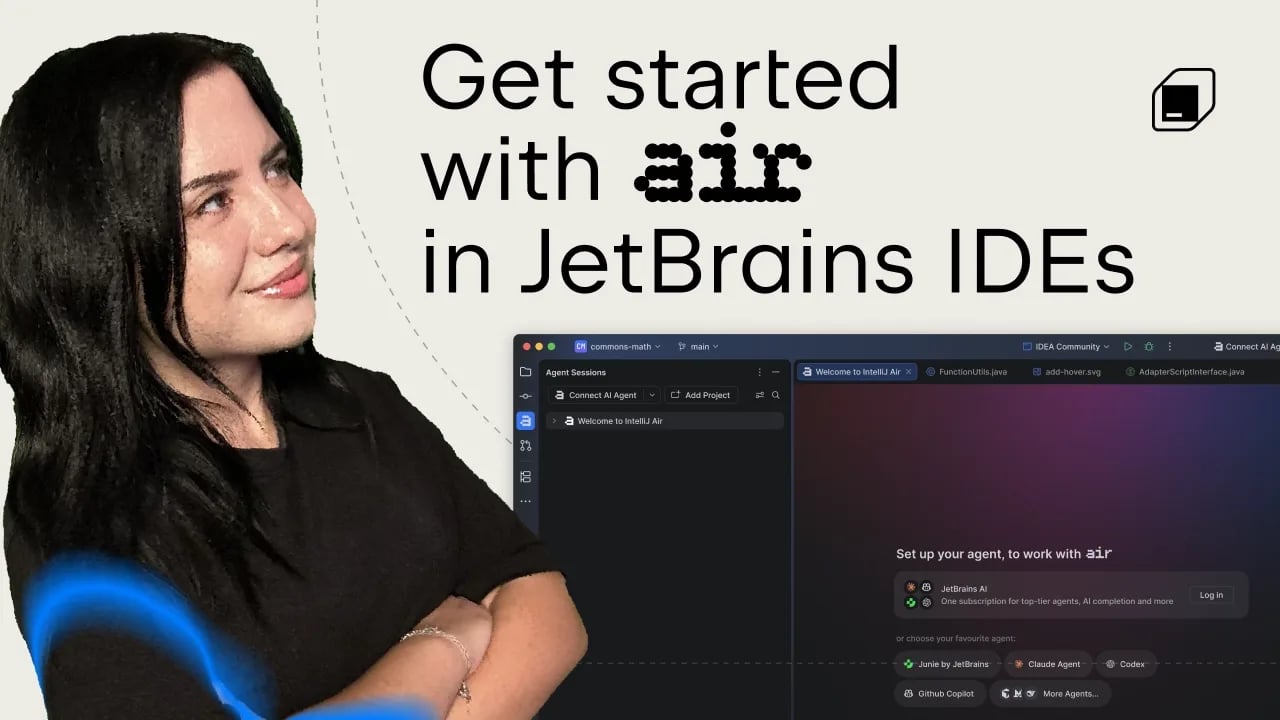
In the first video of our Air in IDEs series, Developer Advocate Kristel Cocoli puts this workflow into practice. Starting with an existing project, she asks agents to extend it, reviews the changes, and tests the result.
You can watch the full video below to see the workflow in action.
Get started with Air in your IDE
Air is available as a plugin from JetBrains Marketplace, and it’s also built into the JetBrains IDEs in the 2026.3 EAP.
If you install Air from the notification in AI Assistant, AI Assistant will be turned off so the two don’t run side by side. To switch back, press Shift twice, select Actions, and search for Open AI Assistant. You can also open Options in the Agent Sessions tool window and select Open AI Assistant. There’s no need to disable Air.
Choose an AI Agent for each task
Air can detect compatible agents already installed on your machine. Open Manage Agents to install them from the registry or connect custom ones, then choose the one you want to use for each task.
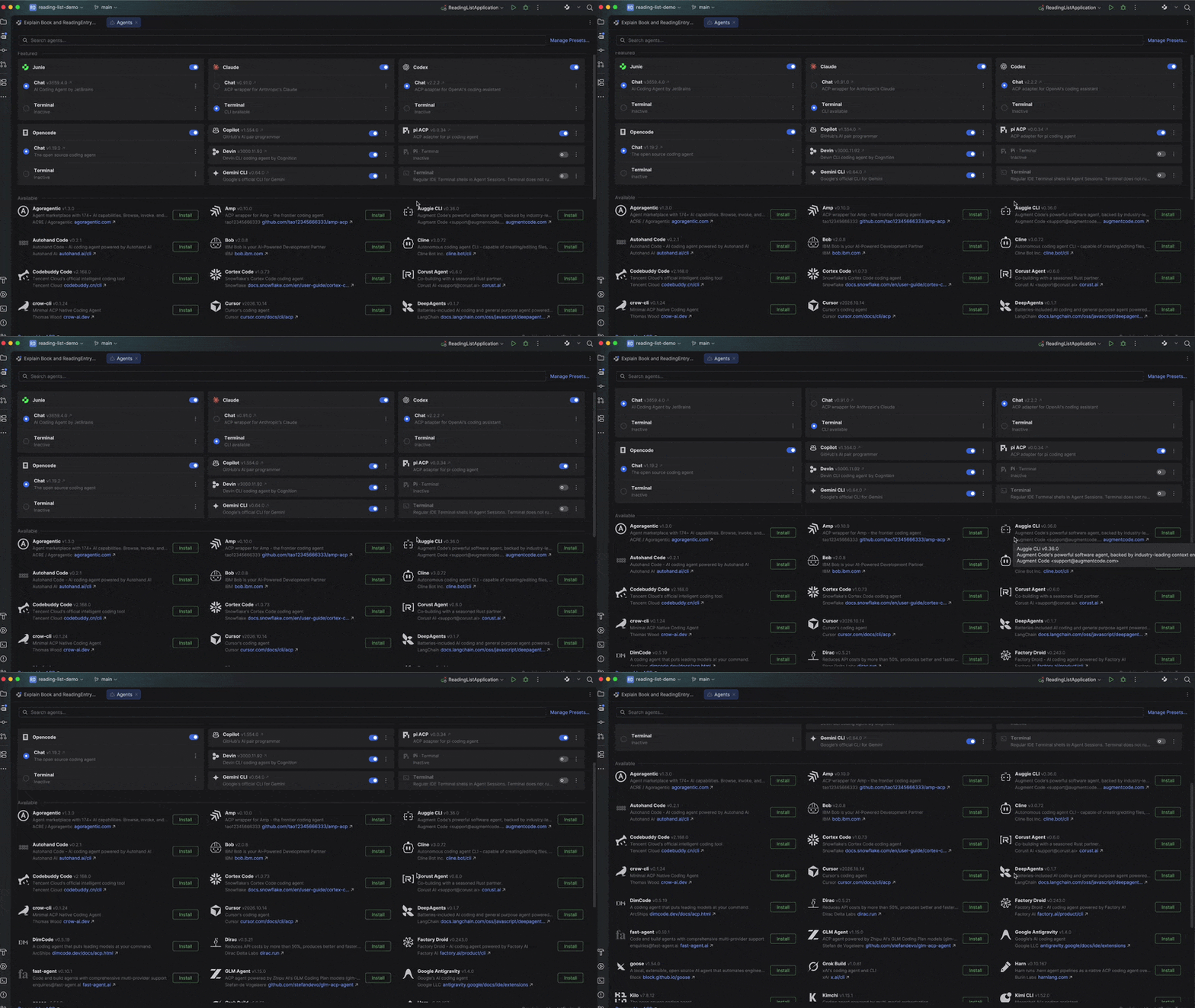
Codex, Gemini, GitHub Copilot, Claude Agent, and Junie are supported, alongside other agents connected through the Agent Client Protocol (ACP). A JetBrains AI subscription supports all these agents. Only Claude Agent requires a JetBrains AI subscription in Chat view, while its terminal interface lets you use your Claude subscription.
This gives you room to use agents you already know while trying others when a task calls for a different approach.
Installing Air does not install or activate any agents, or cause your project code to be sent to an AI provider. You decide which ones to connect and use. If you connect a third-party agent, your data goes directly to that provider under your existing agreement.
If you are using JetBrains AI, theJetBrains AI Terms of Service apply.
Start your first agent session
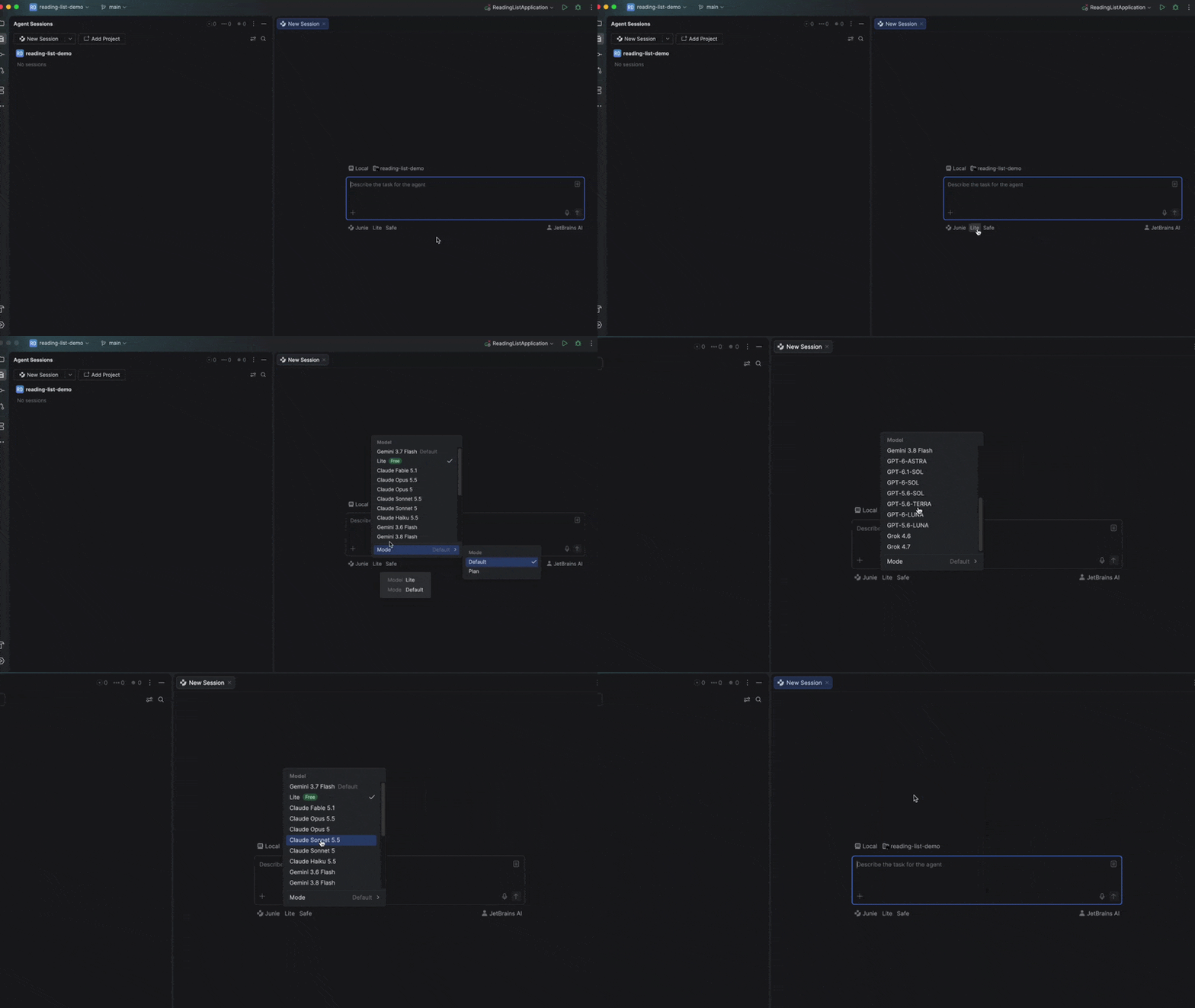
Once you’ve chosen an agent, press Cmd+2 (macOS) or Alt+2 (Windows/Linux) to start a new agent session.
From there, describe what you want the agent to do. You can give it more context by attaching a file or selecting relevant code. A focused request gives the agent a clearer starting point, whether you want it to explore part of the project, investigate a bug, or implement a feature.
For a step-by-step introduction, Developer Advocate Mike Hartington walks through the setup in our latest onboarding video below.
Manage agent sessions while you work
Running several sessions is useful only if you can still see what the agents are doing. Air brings their sessions together so you can follow progress, check updates, and identify work that needs your input.
Ask one agent to explore an unfamiliar part of the project and another to implement a change, or run several sessions with the same agent. While the agents work, you can focus on your own code and return later to review their changes.
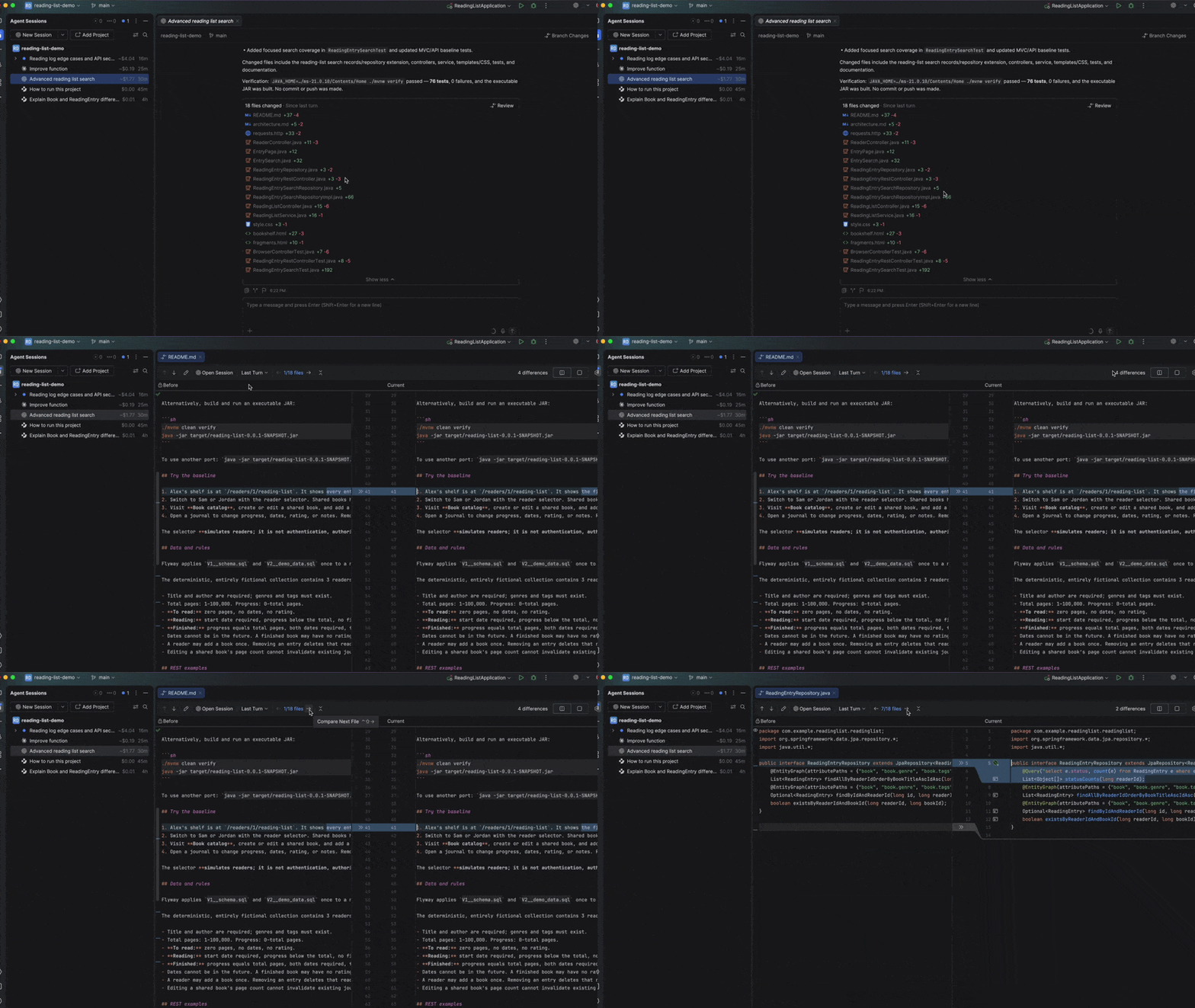
Agent sessions open in the editor as tabs, so you can easily switch between them and your code. Changed files and diffs remain accessible from the session, keeping the agent’s work close to the code it affects. Compatible agents can be used through chat or terminal interfaces, and you can use your Claude subscription in Air’s terminal, which opens as a full-screen tab. Where available, you can also use voice input to provide instructions or feedback.
You can also view session-level cost estimates, helping you understand how agent and model choices affect usage.
Review your code with JetBrains IDE tools
The most important part of delegated work is deciding whether the result is ready for you to accept. Air lets you move from the agent session into the surrounding project, where you can inspect the diff, navigate related code, run tests, and use the other tools available in your JetBrains IDE. If something needs changing, you can send feedback on the diff back to the agent.
Try Air for yourself
Once you’re set up, give Air a focused task in one of your own projects.
You can currently try Junie in Lite mode without a paid subscription. Just sign in with your JetBrains Account and get started.
In the next part of this series, we’ll explore more advanced Air workflows, including how to use worktrees, add code notes, and generate commit messages.
منتشرشده در
JetBrains AI
ادامه مطالعه

 Docker Blog
 OpenAI News