Spend less time on operational busywork and resolve incidents faster with Grafana Workflows
You're investigating checkout errors when someone asks who's coordinating the incident. Support needs an update, and another responder is looking for the runbook. You stop what you're doing to get everyone pointed in the same direction. They're all reasonable requests, but each one takes your attention away from…
%3Aquality(90)%2F&w=3840&q=75) %3Aquality(90)%2F&w=3840&q=75)
Spend less time on operational busywork and resolve incidents faster with Grafana Workflows
%3Aquality(90)%2F&w=3840&q=75)
You're investigating checkout errors when someone asks who's coordinating the incident. Support needs an update, and another responder is looking for the runbook. You stop what you're doing to get everyone pointed in the same direction.
They're all reasonable requests, but each one takes your attention away from understanding the problem. Yes, your team has a process for handling incidents, but carrying it out is another job for someone who's already busy.
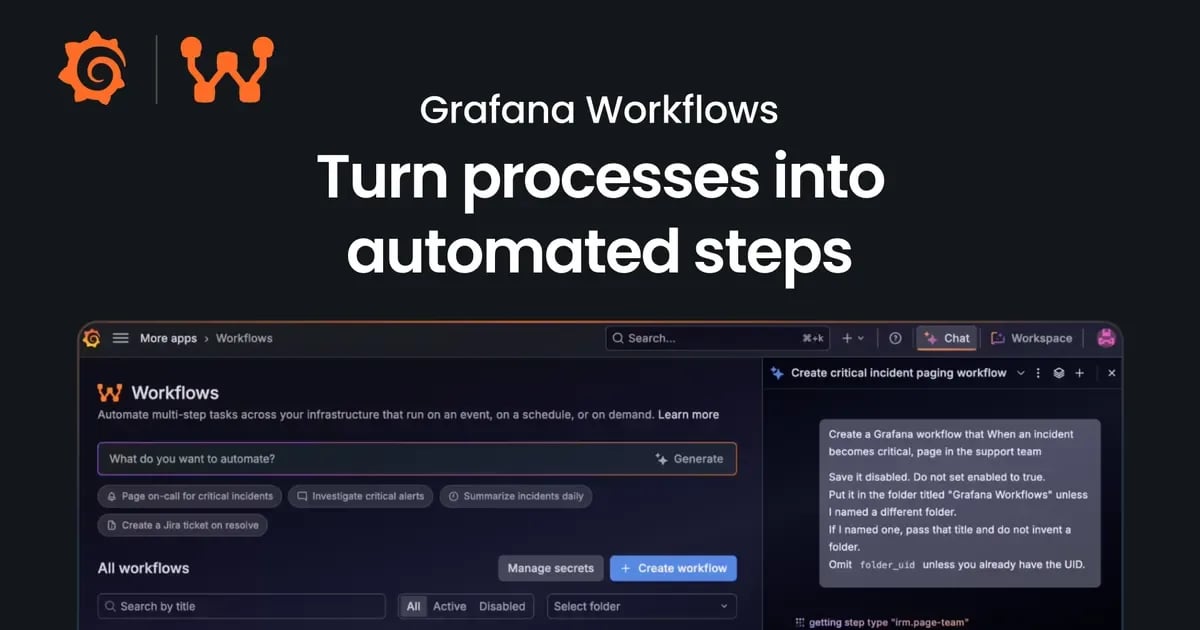
Grafana Workflows, available in public preview, turns your team’s processes into automated steps across Grafana Cloud and your other tools. You can even include Grafana Assistant in those steps to investigate an issue, summarize findings, or draft an update. For example, a workflow can create an incident channel, page support according to your team’s rules, and ask Assistant to prepare a briefing from the available evidence.
The same approach works with your typical day-to-day operations. Once you define the workflow, Grafana Cloud can prepare the next engineer's handoff or gather the findings for your weekly service review. You decide what should happen consistently and where AI can help make sense of changing information.
Get the incident response moving
To illustrate how your team can benefit from Workflows, let's walk through a major incident response process.
For starters, your team needs a place to collaborate and someone to coordinate the response. A runbook helps, but someone still has to find the on-call commander, open the channel, and share the right links.
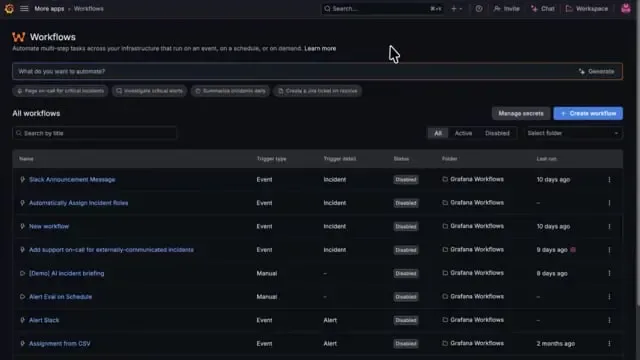
Workflows include blueprints, prebuilt templates you can adapt to your team's process. For this type of project, you'd start with the major incident kickoff blueprint, which can automatically respond to an active critical incident in Grafana Cloud IRM, including an incident that has just been escalated to critical.
It creates a linked Slack channel, looks up your incident commander schedule, and assigns an on-call commander. It also posts your response instructions, bookmarks the runbook and incident page, and records the kickoff on the timeline. If nobody is on call, it leaves a note so the team knows to assign a commander.
Now responders have the incident record and runbook at hand, and the commander can start coordinating the investigation. The setup follows the process you've configured.
From there, you can build on that foundation. Suppose your policy is to involve support in every critical incident. Simply add a step that pages your support team in IRM and another that shares the incident link in their Slack channel. Support can get involved while engineers investigate, without waiting for someone to remember another handoff.
Note: Workflows is currently available under "More apps" in your Grafana Cloud navigation menu.
Put AI findings where people need them
Getting everyone together is just the beginning. The next person to join will need to know what's happening, what you've checked, and where to look next.
Extend the kickoff workflow with an ask Assistant step. Give Workflows the incident link, the affected service, and a specific task:
Review this incident and the available error and latency signals around its start time. Summarize the observed symptoms, link to the evidence, and suggest the next checks. Separate observations from hypotheses and flag missing information.
Assistant investigates using the available observability context and returns a briefing. Subsequent workflow steps post the briefing to the incident channel and add it to the incident timeline. The team can follow the evidence and ask better questions, and those who join later have a starting point for catching up.
At the same time, support has a different need. They have to turn technical findings into clear, customer-facing updates. An incident status update could trigger a workflow that asks Assistant to draft that explanation from the confirmed facts. A post message to Slack channel step sends the draft to the internal support channel, where the team reviews and edits it before sharing it externally.
This is where combining rules and AI becomes useful. You define the trigger, the task, and the destination. Assistant interprets the supplied context and returns a result that the next step can use. An engineer doesn't have to copy the answer out of a chat and put it in the right place.
You can also use AI to answer a specific question that determines the next step in your response. For example, when an alert fires, a workflow could ask Assistant to assess whether customers are affected and estimate how many. If the result exceeds a threshold you define, the workflow can declare an incident and page the SRE on-call. This focused assessment can run alongside a broader investigation into the root cause.
%3Aquality(90)%2F&w=3840&q=75)
Give the next on-call engineer a head start
Soon after, the rotation changes, and the incoming engineer asks, "Anything I should know?"
Answering that question sufficiently can take some work. You remember the incident that's still open and fresh on your mind, but the incoming engineer also needs to know which alerts deserve another look. Gathering that context becomes one more task to finish before you can hand over the shift.
The on-call handoff report blueprint makes preparing that context part of the rotation change. It watches your selected IRM schedule and asks Assistant to review the team's recent incidents and alert groups. By default, it looks back over the past week, then posts a briefing to Slack with links to the relevant records.
The prompt asks Assistant to lead with what needs attention now: active incidents, recurring alerts, and follow-up work. You can adjust the time window and the report's focus to match your rotation.
%3Aquality(90)%2F&w=3840&q=75)
The outgoing engineer can add anything that hasn't made it into the records. The incoming engineer gets a briefing to check and build on as they take over. That makes the handoff easier for both people, especially after a busy shift.
Come to the service review with the findings ready
The incident is now resolved, but the work doesn't stop there. Routine service reviews have their own preparation burden. For example, you may want to discuss whether latency is getting worse or error budgets need attention. First, someone has to open the dashboards, compare the numbers, and assemble an update for everyone else.
The weekly service health summary blueprint can have that first assessment waiting in Slack. Set it to run before the meeting for the services your team owns.
Assistant reviews the previous week's SLO status, error-budget consumption, and error and latency trends, along with relevant incidents and alerts. It produces a health assessment for each service and calls out risks for the coming week. The next workflow step posts the summary to Slack.
%3Aquality(90)%2F&w=3840&q=75)
Your team comes to the review with an assessment to discuss, so you can spend the time deciding what needs attention.
Start with one process your team already repeats
Ready to get started with Workflows? Pick the part of your week that keeps requiring someone to gather context or coordinate the next step. Choose a starting point from theblueprints library, or describe your process to Grafana Assistant and ask it to build a workflow for you.
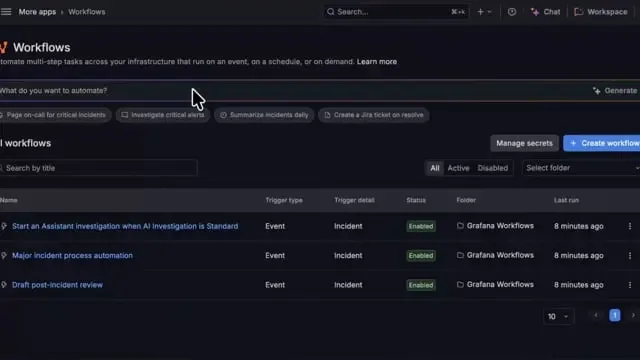
The workflow opens disabled, so you can review and test it before turning it on. The visual editor shows how the steps fit together. Run history lets you inspect their inputs, outputs, and errors, helping you check both the actions taken and the information passed between them.
For example, click on the button below to create your first workflow using an Assistant prompt to build a daily summary of incidents and firing alerts.
Grafana Workflows is available now in public preview. Use the getting started guide to try your first blueprint and learn more about this new feature in Grafana Cloud. Start with the incident setup you keep repeating, the handoff that always takes too long, or the service review you wish you had time to prepare. Make that one process easier, then build from there.
ObservabilityCON 2026 is live! Check out our blog post recapping all the big announcements !
منتشرشده در
Grafana Labs Blog
ادامه مطالعه

 Cloudflare Blog
 OpenAI News
 Cloudflare Blog